Managing Articles
Add a new blog article
Navigate to Site Content / Articles or to Site Content / Blogs and click on the name of the blog you want to add the article to.
Click the Articles Tab. Scroll down and click the Add an Article button.
Use the guide below to enter the required information.
|
Field |
Explanation |
|
|
Title |
Title of the blog post |
|
|
Associated image |
Optional. Upload or select an image to appear with the blog post. You may also insert images into the blog content via the rich text editor. See Message below. |
|
|
Article type |
Set this to the name of the blog you are adding the article to. |
|
|
Teaser |
The short piece of text that appears on the main landing page for the blog. |
|
|
Message |
The main body of content |
|
|
Created date |
Automatically captured |
|
|
Archive date |
Optional. Date after which the article should no longer be accessible. |
|
|
Publish date |
The date of the blog posts publication. You may schedule blog posts to be published in the future by entering the publish date accordingly. |
|
|
Published |
Yes if post should be shown, no if post should not be visible to
users. This option is useful when wanting to edit or review an article before publishing it |
|
|
Allow comment |
Can users comment? (See managing user comments under Managing Blogs for more information) |
|
|
Headline |
Deprecated. This can be ignored. |
|
|
Tags |
Optional. Descriptive tags about the blog posts contents. |
|
|
Author |
Required. Name of blog posts author. This will be displayed on the blog landing page and the individual blog post page. |
|
|
Publication |
Any source you wish to cite (such as "Reprinted from CNN article XXX"). |
|
|
Sites |
If you manage multiple sites through one Fakoli instance, you can publish an article on multiple sites. |
Edit an existing blog post
Navigate to Site Content / Articles or to Site Content / Blogs. Locate the blog/article you wish to
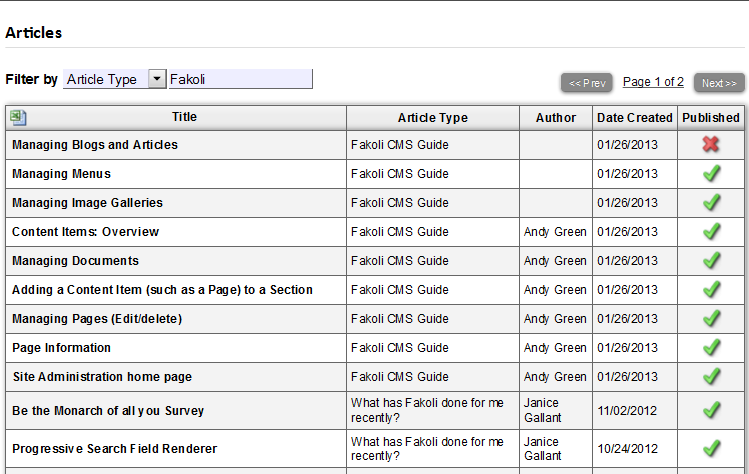
edit. Please note that any list that has "Filter" at the top can be filtered by any column, including Article Type (aka Blog Title) or article title. You can also sort by the column title. Any table you see in Fakoli that has an excel spreadsheet icon in the top left side can be exported to excel by clicking the icon.
Unpublish a blog post
Locate the blog post you wish to remove. Look to the rightmost column (Published) and click the green check mark. The check mark will turn into a red X. This indicates that the blog post has been unpublished. It is immediately no longer available to the public. It can be republished whenever you wish.
Articles before their publishing date or after archiving date show up as published, even if they are not available on the site.Managing Image Galleries » « Managing Blogs