Managing Menus
About Menus
Fakoli allows you to create as many menus as you need, and then add them to templates or as modules on different sections.- For more information on templates
- For more information on menu modules
Navigate to Site Content > Menus.
All sites have by default one menu called Global Navigation with an identifier of global. On Fakoli.org, this is the menu at the top of the site.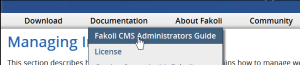
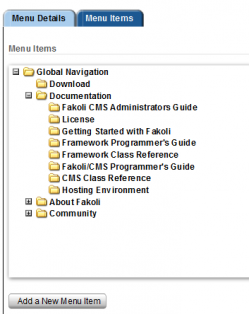
The above navigation is represented in Fakoli admin as parent menu items and child sub-items to show the hierarchy of menu levels. The + sign next to the folder indicates there are child sub-items under the parent menu item.
Adding or Editing a menu item
Click on the menu you wish to edit.
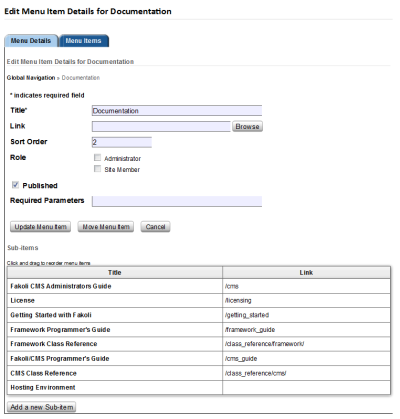
Click the 2nd tab, called Menu Items Tab. If you wish to add a new top level item, click "Add Menu Item" button. If you wish to add a new sub-item, open the folder and navigate to the parent item where you want the sub-item to live.
|
Field |
Use |
|
Title |
The title of the menu item as it should appear in the menu |
|
Link |
The content item to which the user should be taken when s/he clicks on
the link (see below) |
|
Sort Order |
The order in which the item should appear in the menu |
|
Role |
Which user role(s) are permitted to see this menu item. Leave blank for no restrictions. |
|
Published |
Unpublished menu items only appear for administrators |
|
Required Parameters |
For advanced use. You can leave this blank. |
|
Move Item (Button) |
You can move this sub-item to another parent menu item |
|
Add Sub-Item (Button) |
Add another child sub-item under this menu item. You can also reorganize the sub-items by dragging and dropping them in the preferred order. |
Links
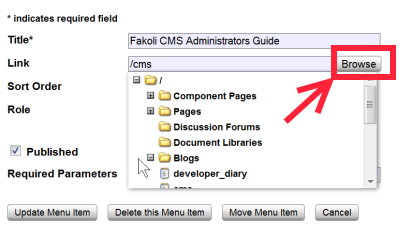
The way to add the link is to click the Browse button which will show you, organized by type of content item, all the content you have available to link to.Please note, if you cannot find the item you are looking for:
- is it published?
- has it been added to the section?
Managing Taxonomies » « Extending Document Libraries